Everything you need to follow volleyball tournaments
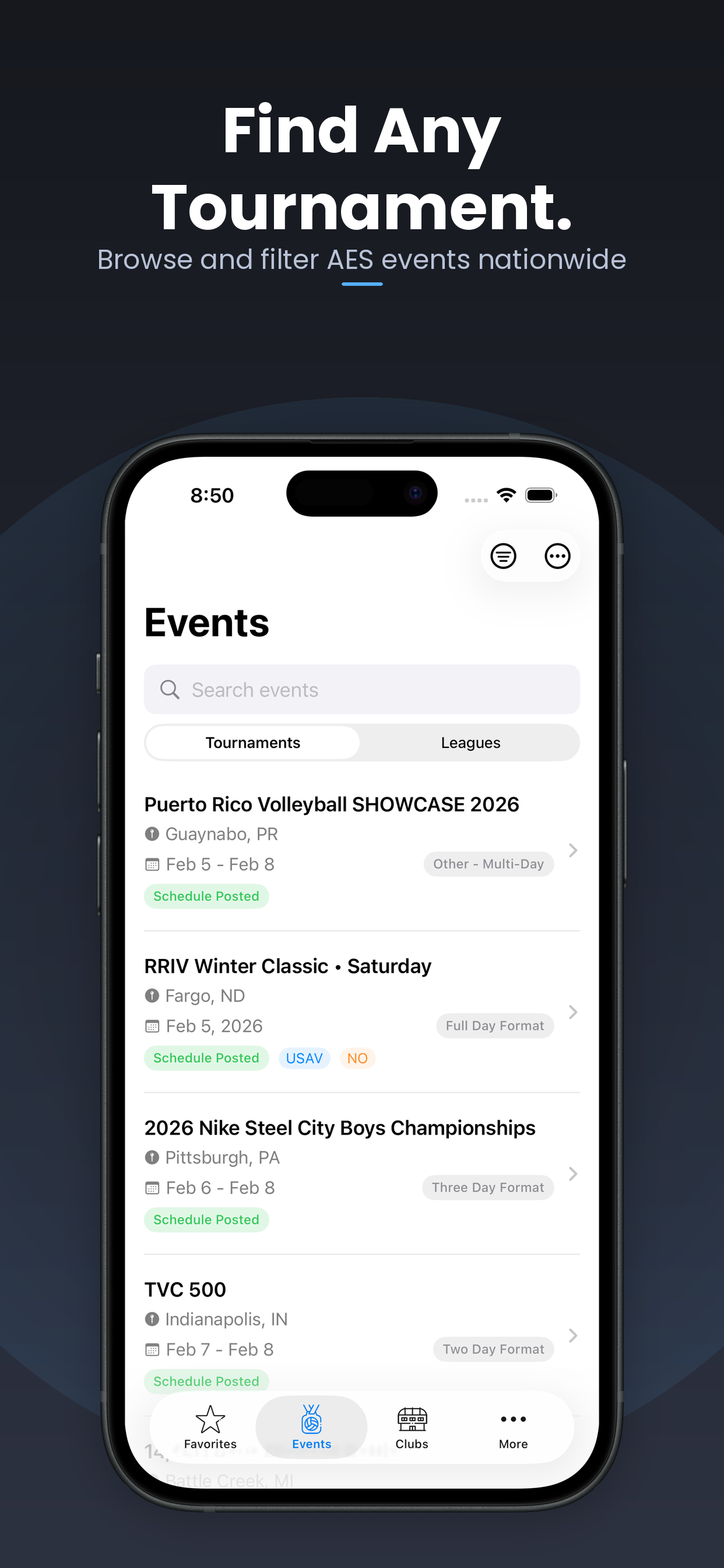

Search upcoming and past events, filter by category, and jump into any division to see pools, brackets, and schedules.
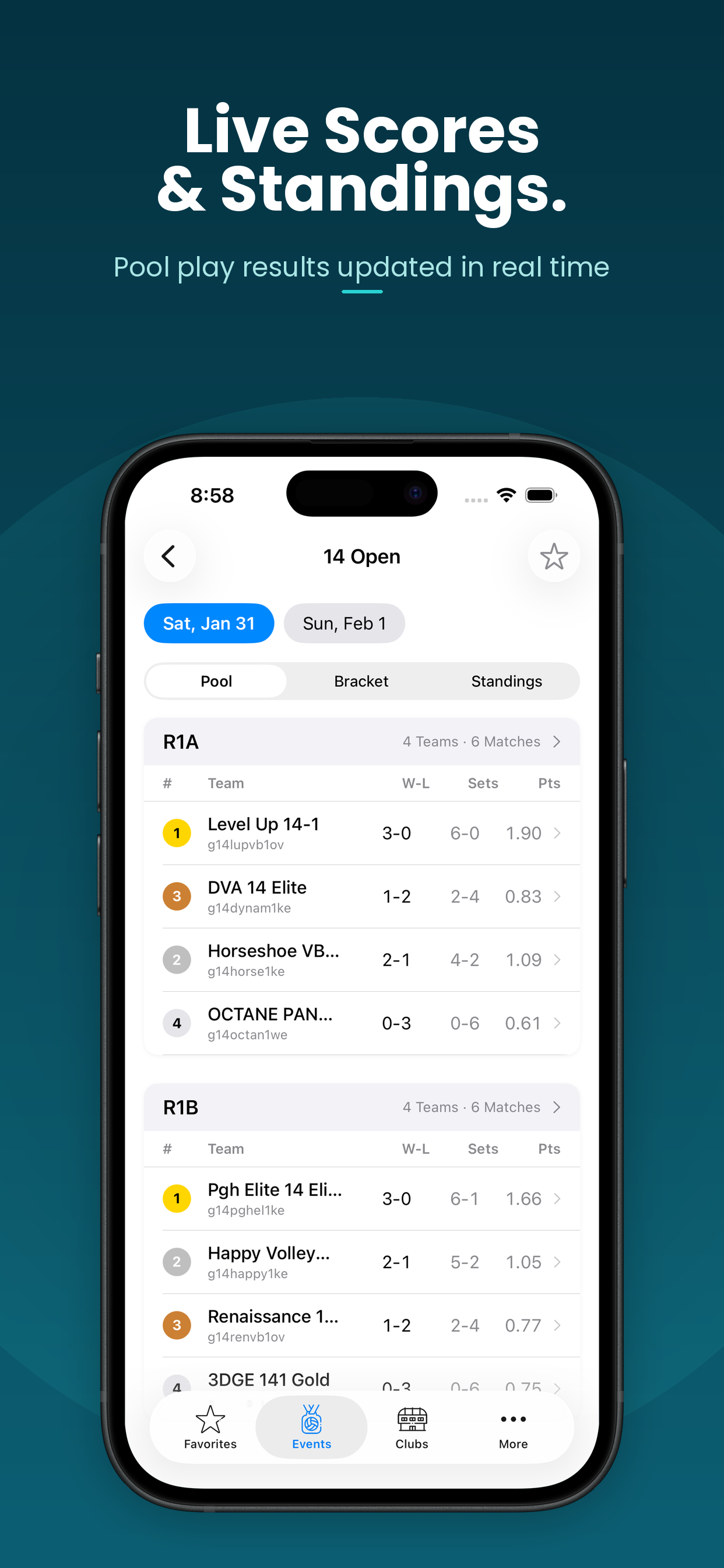

Follow match results in real time. View pool standings, set scores, and bracket play as games unfold.
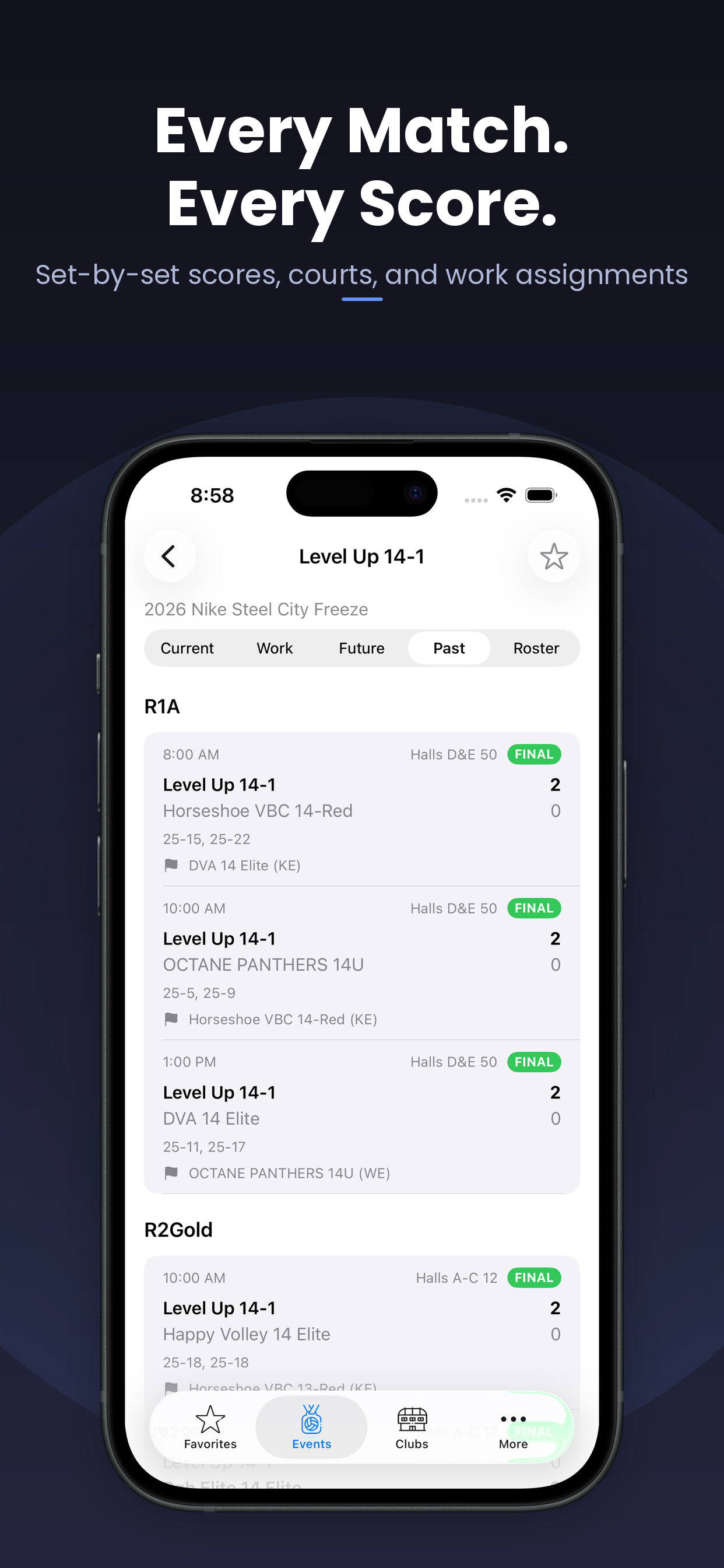

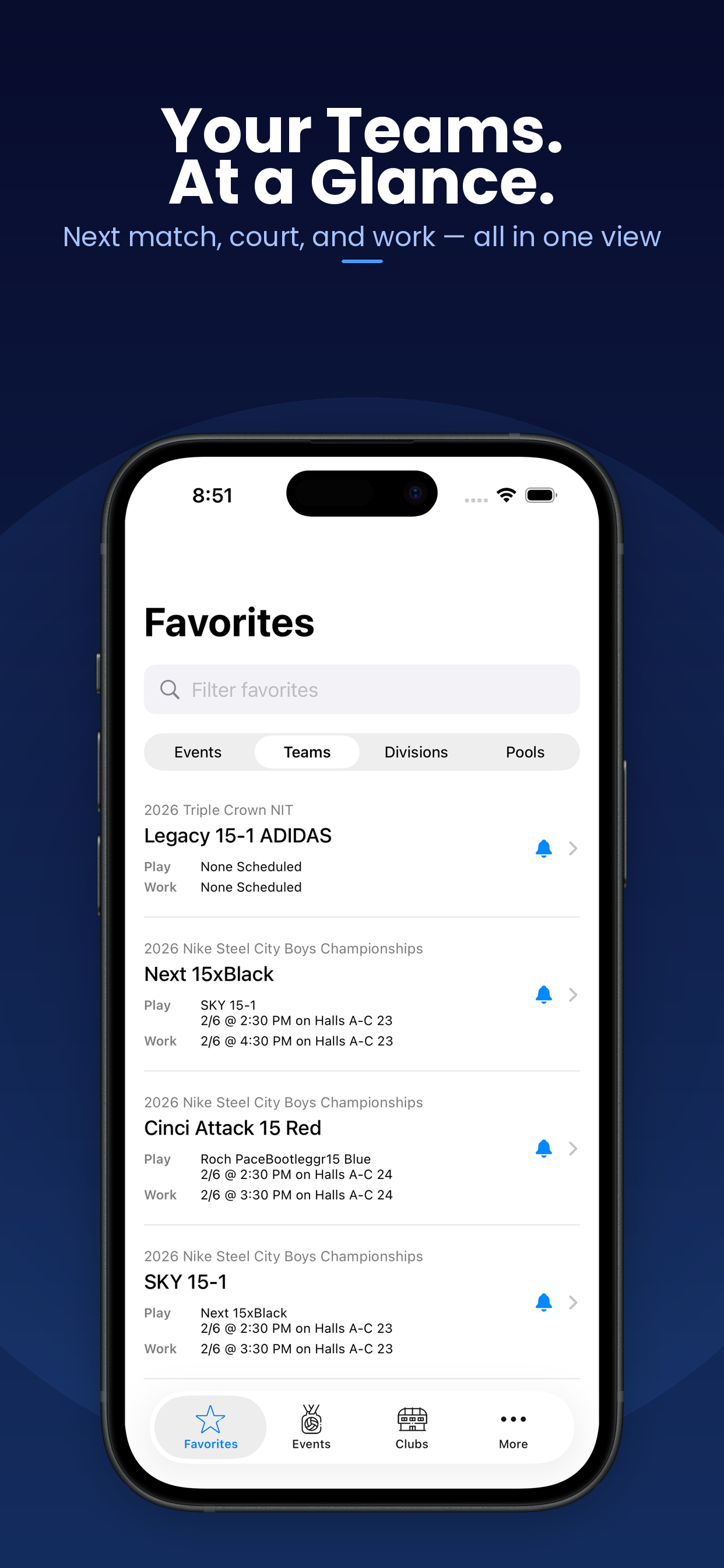
Star your favorite teams, events, divisions and pools. Turn on notifications to get alerted when games finish or schedules change.
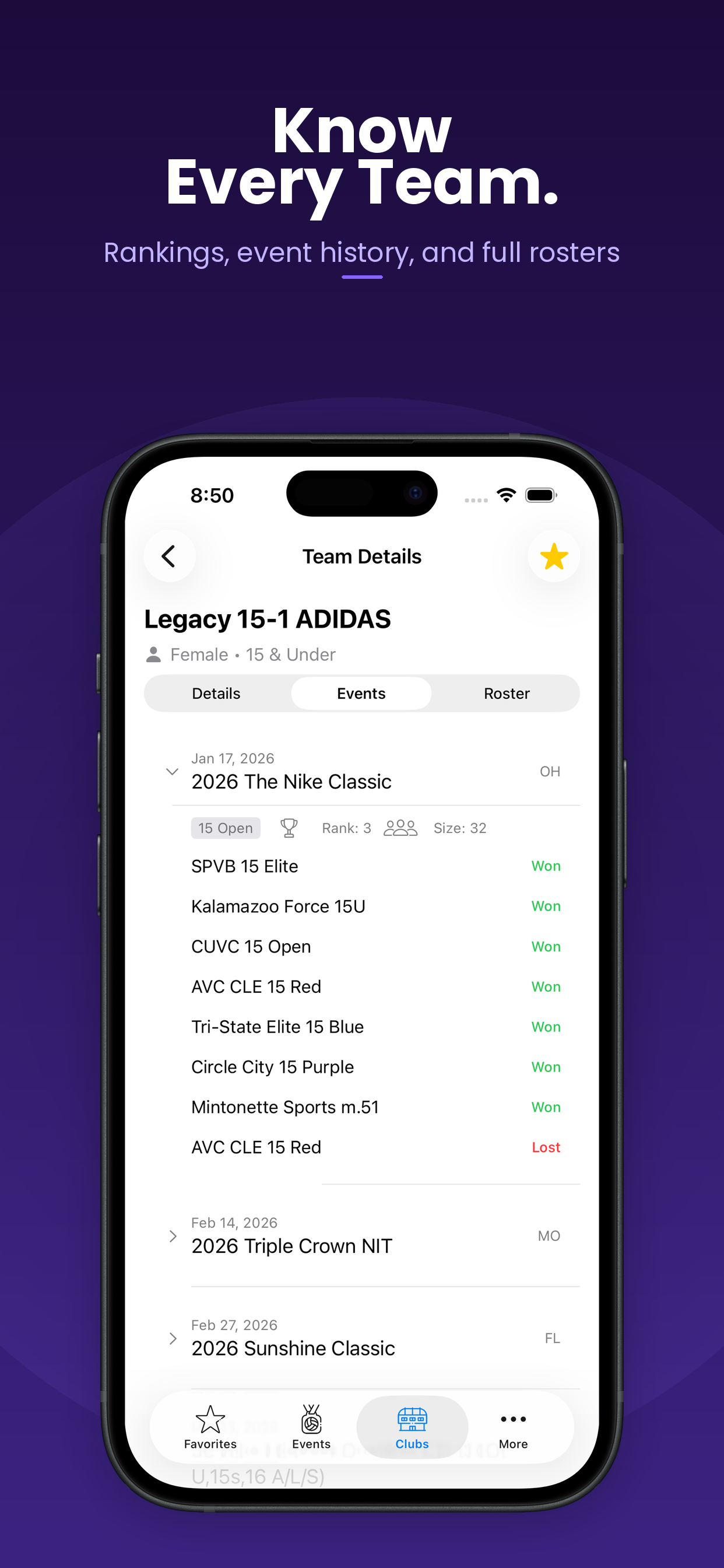

Search for any club, browse for a team, check rosters, rankings, and event history to prepare for your next opponent.
Find answers to common questions
 Getting Started
SideOut is a volleyball tournament companion app that connects to Advanced Event Systems (AES) and Sports Wrench. Browse events from both platforms, follow teams, view live scores, and get notifications - all in one place.
Use the four tabs at the bottom of the screen: Favorites for your starred items, Events to browse tournaments, Clubs to search teams, and More for settings and help.
Go to the More tab and tap "Show Tutorial" to walk through the onboarding screens again.
 Events
Go to the Events tab and use the search bar to find tournaments by name. You can also filter by affiliation, event type, region, or state using the filter icon in the top-right corner.
Tap the menu icon in the top-right corner of the Events tab and select "Show Past" or "Show Upcoming" to toggle between views.
The segmented control below the search bar lets you switch between Tournaments and Leagues. Tournaments are standalone competitive events, while Leagues are ongoing seasonal competitions.
The event detail page shows the tournament date, host organization, venue name and address, website link, contact email, affiliation, and region. You can also view all divisions and the court schedule when available.
When a schedule has been posted, you can tap into a division to view pool play standings, match results, brackets, and team schedules. If the schedule hasn't been posted yet, you can favorite the event to get notified when it becomes available.
 Clubs & Teams
Go to the Clubs tab and type a club name in the search bar. Tap on a club to see all of its teams. You can filter the team list by gender using the segmented control.
The team detail page shows the team's national and regional rankings, win-loss record, and event history with finish positions. You can also view the team roster, including players and staff members.
Open any team's detail page and scroll down to see a list of events the team has participated in, along with their finish position in each tournament.
 Live Scores & Schedules
Navigate to any division within an event to see pool play standings and match results. Pull down on any scores screen to refresh and get the latest updates.
The standings table shows each team's rank within their pool, along with their match record and set record. Teams are ordered by their overall performance in pool play.
From a division's standings, tap on any team to see their full schedule. The schedule is organized into tabs: Current (in-progress matches), Work (referee or work team duties), Future (upcoming matches), and Past (completed matches).
The court schedule shows all matches organized by court number for each day of the event. Access it from the "Court Schedule" tab on the event detail page. This is useful for knowing where to go at the venue.
When an event has playoff or bracket matches, you can find them in the division view. Bracket matches appear alongside pool play results, showing the elimination rounds and their scores.
 Favorites
Tap the star icon on any team, event, division, or pool to add it to your Favorites. You'll find star buttons on event detail pages, division views, team schedule headers, and pool sheets.
All your favorites are in the Favorites tab, organized into four sub-tabs: Events, Teams, Divisions, and Pools. Use the search bar at the top to filter across your favorites.
Swipe left on any item in the Favorites tab to delete it. You can also tap the star icon again on the original page to un-favorite it.
A blue dot next to a favorite means there has been an update since you last viewed it, such as new scores or schedule changes. Tap the favorite to view the update and the dot will clear.
 Push Notifications
Go to the More tab and turn on the "Push Notifications" toggle. You'll be asked to grant notification permissions if you haven't already. This is the master switch - it must be on for any notifications to arrive.
In the Favorites tab, swipe right on any item to toggle its notification bell. A blue bell icon means notifications are active; a gray slashed bell means they are muted. This lets you get alerts only for what you care about most.
You can receive notifications when match scores are posted, when schedules are published or updated, and when there are changes to your favorited teams, divisions, or pools.
Tapping a notification navigates you to the relevant team, event, or division. If the favorite has been removed or the event has ended, the link may not resolve. Make sure the item is still in your Favorites.
 Divisions & Pools
Pool play is the round-robin phase of a tournament where teams in the same pool each play one another. The standings show each team's record within their pool and determine seeding for bracket play.
From a division view, tap on any pool to see the pool sheet. It shows every match in that pool, the teams involved, court assignments, match times, and final scores.
In any standings table, tap on a team's row to go directly to that team's schedule. From there you can see all of their matches, scores, and court assignments.
 Troubleshooting
Pull down on any scores screen to manually refresh. Scores are sourced from AES and Sports Wrench, so there may be a brief delay between a match finishing and scores appearing. If scores still seem stale, try closing and reopening the app.
First, check that the "Push Notifications" toggle is on in the More tab. Then check that the specific favorite has its bell icon active (blue bell, not slashed). Finally, make sure notifications are allowed for SideOut in your iPhone's Settings > Notifications.
Go to More and tap "Clear Cache." This removes all cached tournament data and forces the app to re-fetch from the server. Your favorites and notification preferences are preserved.
Make sure you have an internet connection. The app needs network access to fetch tournament data from AES and Sports Wrench. If you see persistent errors, try clearing the cache from the More tab or restarting the app.
We'd love to hear from you
Last updated: February 2025
SideOut collects minimal information to provide our services:
Your favorites and preferences are stored locally on your device. We do not require accounts or cloud sync. Feedback submissions are stored on our servers to help improve the app.
For privacy questions or concerns, please use the feedback form above.
We may update this privacy policy from time to time. Continued use of the app constitutes acceptance of any changes.
SideOut is an independent application and is not affiliated with, endorsed by, sponsored by, or officially connected to Advanced Event Systems (AES), Sports Wrench, SportsEngine, or NBC Sports Group in any way. All product names, logos, and trademarks are the property of their respective owners.
Tournament data displayed in this app is sourced from publicly available information provided by AES and Sports Wrench. SideOut does not guarantee the accuracy, completeness, or timeliness of any data. Scores, schedules, standings, and other event information are provided "as is" without warranty of any kind.
By using this app you acknowledge that SideOut is a third-party tool and that any issues with underlying data should be directed to the original data provider.